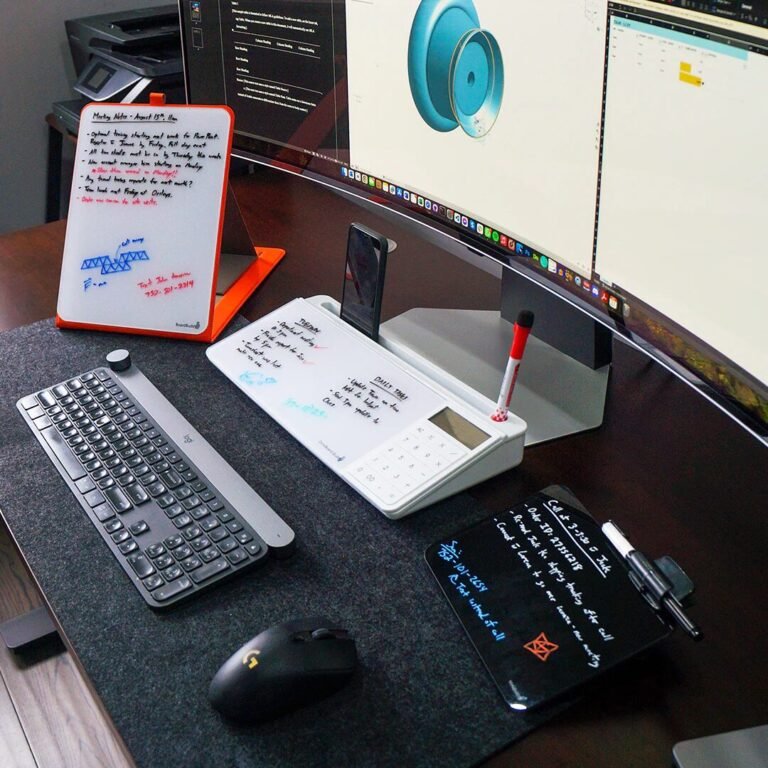

In today’s fast-paced digital world, optimizing the performance of consumer technology is essential for ensuring smooth operations and maximizing efficiency. Whether you’re using a laptop, smartphone, or smart home device, understanding how to fine-tune your technology can lead to improved speed, reliability, and an overall better user experience. This guide provides actionable insights tailored to help you achieve peak performance from your devices without unnecessary jargon or hype.
Understanding Your Device’s Baseline Performance
Before diving into optimization techniques, it’s crucial to understand your device’s baseline performance. Gather information on its current state by using built-in diagnostic tools, performance benchmarks, or third-party applications. Identifying system specs and current configurations will guide your optimization efforts effectively.
Benchmarking Tools
- Windows: Use built-in tools such as Task Manager and Windows Performance Monitor, or third-party apps like
CPU-ZandUserBenchmark. - MacOS: Utilize Activity Monitor for real-time performance statistics or download
Geekbenchfor comprehensive benchmarking. - Mobile Devices: Apps like
Geekbench,Antutu, or3DMarkcan provide performance metrics for both Android and iOS devices.
Essential Hardware Considerations
Your hardware plays a significant role in your device’s performance capabilities. Here are some key areas to focus on:
Upgrade Your RAM
Increasing your RAM can prevent system slowdowns, particularly when multitasking. For most users, a minimum of 8GB is recommended, while 16GB is ideal for demanding applications.
SSD vs. HDD
If you’re still using a traditional hard drive (HDD), switching to a solid-state drive (SSD) will drastically improve boot and load times. SSDs are faster and more reliable, making them an excellent investment for enhancing overall performance.
Check for Hardware Compatibility
When upgrading components, ensuring compatibility with your existing system is essential. Consult your device’s manual or manufacturer website for specifications before purchasing any new hardware.
Software Optimization Techniques
Optimizing software configurations can yield dramatic improvements in performance.
Operating System Updates
Always ensure that your operating system (OS) is up-to-date. Updates often contain performance enhancements, security patches, and bug fixes.
Manage Startup Programs
Excessive startup programs can slow down boot times and overall performance. Here’s how to manage them:
- Windows: Press
Ctrl + Shift + Escto open Task Manager, go to the Startup tab, and disable unnecessary programs. - MacOS: Go to System Preferences > Users & Groups > Login Items, and remove unneeded apps.
Disk Cleanup
Run disk cleanup utilities to eliminate unnecessary files:
- Windows: Use Disk Cleanup by typing
disk cleanupin the search bar. - MacOS: Use the built-in Optimize Storage feature found in About This Mac > Storage.
Adjust Visual Effects
Reducing or disabling visual effects can improve performance significantly:
- Windows: Search for Performance Options and select “Adjust for best performance.”
- MacOS: Turn off animations by selecting System Preferences > Accessibility > Display and checking “Reduce motion.”
Use Lightweight Software Alternatives
Consider using lighter alternatives for resource-heavy applications. For example, replace Microsoft Office with LibreOffice or Google Docs for word processing tasks.
Network Optimization
For devices that rely on internet connectivity, optimizing your network can enhance performance significantly.
Router Positioning
Position your router in a central location to maximize Wi-Fi coverage. Avoid placing it behind walls or in corners.
Change DNS Settings
Switching to a faster DNS can improve browsing speeds:
- Consider using Google DNS (
8.8.8.8and8.8.4.4) or Cloudflare’s DNS (1.1.1.1).
Wired vs. Wireless
Whenever possible, opt for wired connections over Wi-Fi to reduce latency and achieve faster speeds.
Security and Privacy Measures
Performance optimization doesn’t just mean speed; security can also affect device performance. Keeping your systems secure can prevent malware that may slow down your device.
Install Antivirus Software
Use reputable antivirus software to scan for malware and prevent performance degradation caused by infections. Ensure regular updates for protection against emerging threats.
Regular Backups
Establish a routine for backing up data, utilizing cloud services or external drives, to avoid performance issues caused by data loss or corruption.
Conclusion
Implementing these strategies can lead to noticeable improvements in your consumer tech devices. From hardware upgrades to software optimizations and network adjustments, each element contributes to enhanced performance efficiency. Expect faster boot times, shorter application launch windows, and a smoother overall experience as you apply these tips. Make these optimizations a regular part of your tech routine to maintain peak performance over time.
Frequently Asked Questions
What should I do if my device is still slow after optimization?
If you have implemented all optimization tips but still experience slowness, consider possible hardware failure or check for background tasks consuming resources. Running a full system diagnosis may also be necessary.
Is it safe to override manufacturer settings for performance boosts?
While some adjustments are safe, be cautious when overclocking or tweaking system settings. Research thoroughly and know that it may void warranties or lead to instability.
How often should I perform these optimizations?
Regular maintenance every few months is recommended, along with immediate actions after any significant updates or if you notice performance issues.
Can I optimize my smartphone’s performance similarly?
Yes, many of these techniques apply to smartphones, such as updating the OS, managing apps, and adjusting settings. Ensure you also check for battery health, as poor battery condition can affect device performance.
What type of SSD should I get for my laptop?
Choose an SSD that fits your laptop’s specifications. Look for SATA SSDs for older models or NVMe SSDs for newer devices, as the latter offers higher speeds. Always verify compatibility before purchase.